Indexed to Not Indexed: Detecting "Ghost Links" Before They Hurt Your SEO
A "ghost link" is a backlink on a page Google has quietly dropped from its index - it still returns 200 OK and looks alive, but passes zero ranking value. IndexChecker's Status Change Detection compares each re-check against the last and flags every URL that flipped from Indexed to Not Indexed, so you catch link decay early, export the dead list, and reclaim or rebuild the links before they cost you rankings.
One of the biggest silent killers of an SEO campaign is link decay. You build a link, it gets indexed, you celebrate - and two weeks later Google quietly drops it from the index. Nothing changes on the surface: the page still loads, your anchor text is still there, a human visitor still lands where they should. But a link on a de-indexed page is invisible to the algorithm, so it stops passing authority the moment it leaves the index. This guide shows how to catch those ghost links before they hurt your rankings.
Why do backlinks get de-indexed?
A link disappears from the index for one of three reasons, and each one calls for a different response:
| Reason | What it means | Your move |
|---|---|---|
| Low-quality content | Google decided the page offers little value and dropped it in a quality review | Rebuild the link on a stronger page; stop buying from that publisher |
| Orphaned page | The site owner removed the internal links pointing to the page, so it lost crawl priority | Ask the webmaster to re-link it, or resubmit it for indexing |
| Technical error | The server returned a 5xx error when Googlebot last visited | Wait for the site to recover, then re-check and resubmit |
Knowing which links dropped - and when - is what lets you react: contact the webmaster, submit the page for re-indexing, or ask for a replacement if you paid for the placement.
How do you find which links dropped out of the index?
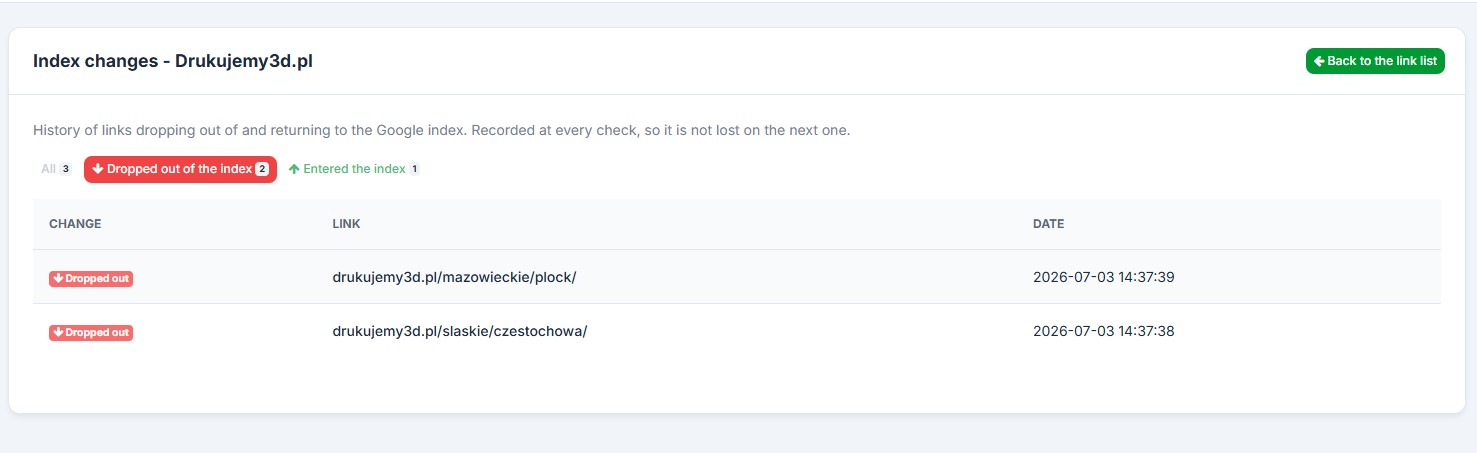
Re-check the project, then open the Index changes view. Instead of comparing spreadsheets by hand, it isolates only the URLs whose status differs from the previous check. The change is recorded at every check, so the history is never lost on the next run - you can look back and see the exact date each link left or entered the index.
Step by step
- Open your project in the dashboard.
- Click Check again to refresh the status of every link.
- Open the Index changes view (or the "Status Changed" filter on the list).
- Filter to Dropped out of the index to see only the ghost links.
What do the status changes mean?
Two changes matter, and they point in opposite directions:
| Change | What happened | Meaning for your campaign |
|---|---|---|
| Not Indexed > Indexed | A link that was dead is now live in Google's index | Success - your indexing effort worked, the link now passes value |
| Indexed > Not Indexed | A link that was live has been removed from the index | Warning - this is a ghost link; act before it drags on rankings |
How do you export the de-indexed list for a client or link builder?
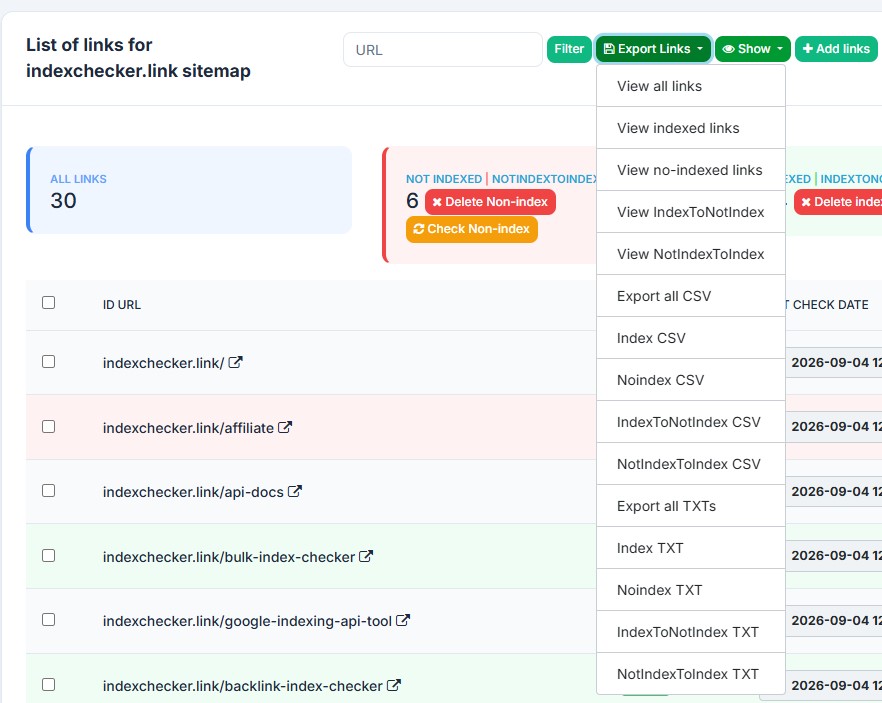
Open the Export Links menu and download the "Not Indexed" or the moved-out list to CSV or TXT, or view it in the browser to copy. You can hand the de-indexed URLs to your link builder to claim replacements, feed them to an indexer to resubmit, or keep the clean Indexed list as proof of work for a client report.
Frequently asked questions
What is a ghost link?
A backlink on a page that returns a normal 200 OK to visitors but is no longer in Google's index. It exists for a human clicking through, but not for the algorithm, so it passes no ranking value.
How often should I re-check for de-indexed links?
Re-check a new batch about 30 days after placement, then quarterly for links you paid for. Google tends to drop low-authority pages after roughly 90 days of inactivity, so a quarterly pass catches most decay in time.
Can a de-indexed link come back on its own?
Sometimes - if the drop was a temporary crawl or server issue, the page can return to the index on the next crawl. That is why comparing each re-check against the last matters: a link that flips back to Indexed shows up in the same report.
Google's own documentation on indexing and why pages leave the index.
Check your project health now. Log in to IndexChecker, or start free with 50 credits and run the first de-indexed report on your own link list.